

Description
Download Acronis Backup and Security – Reliable Backup, System Utilities & Online Protection
Overview of Acronis Backup and Security 2011
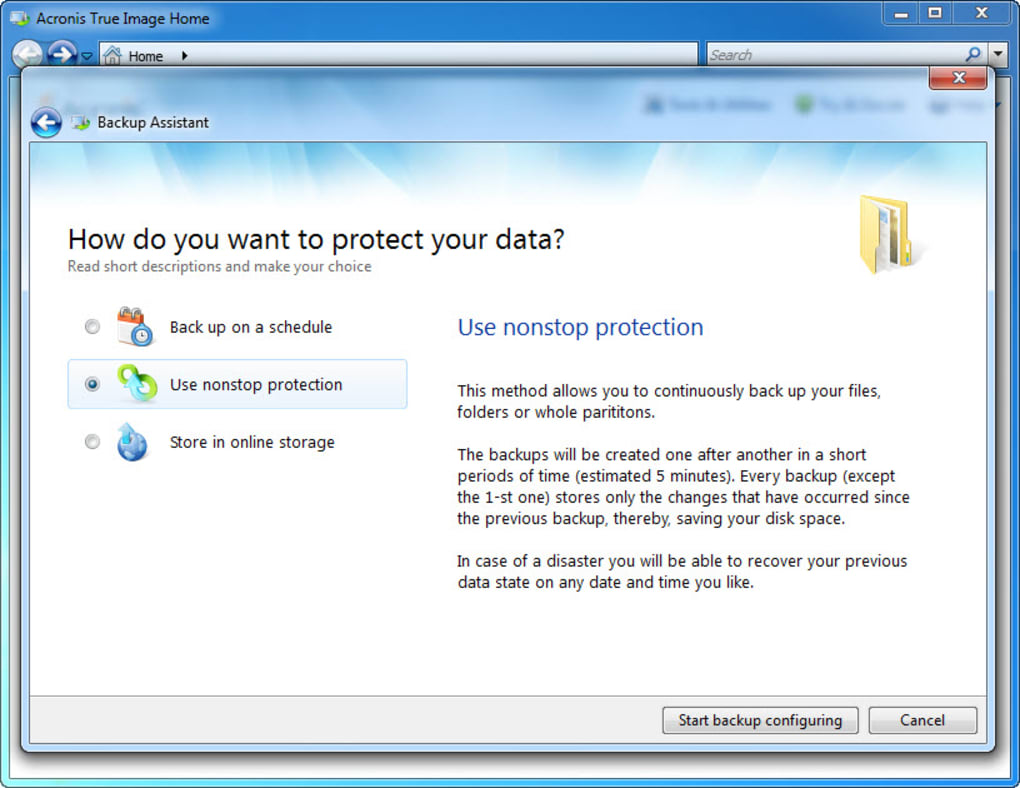
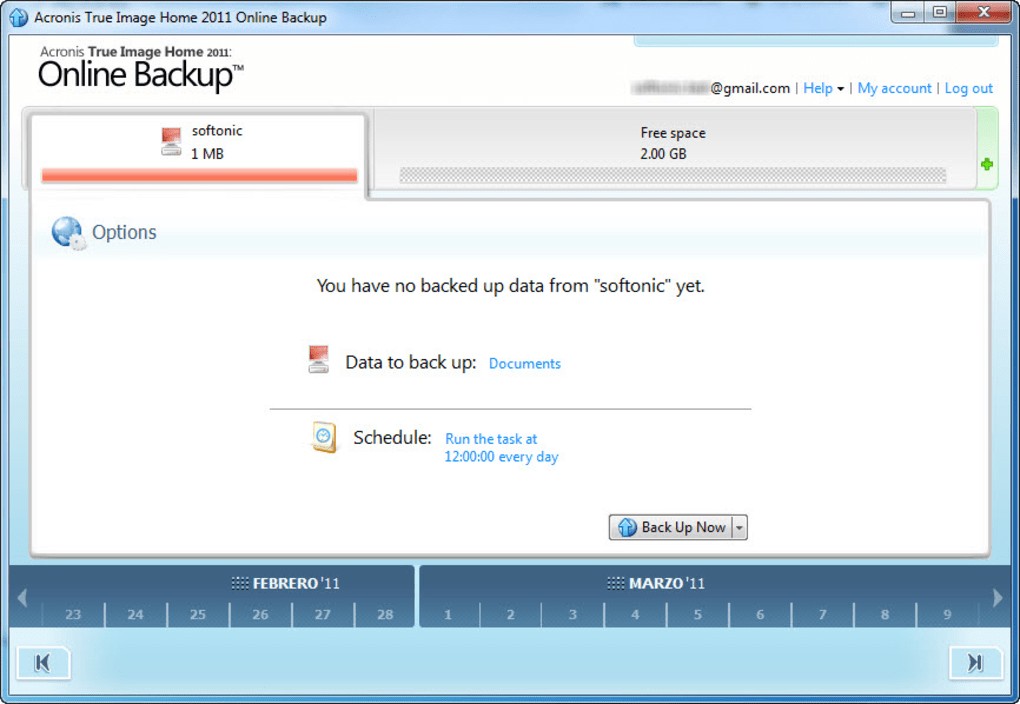
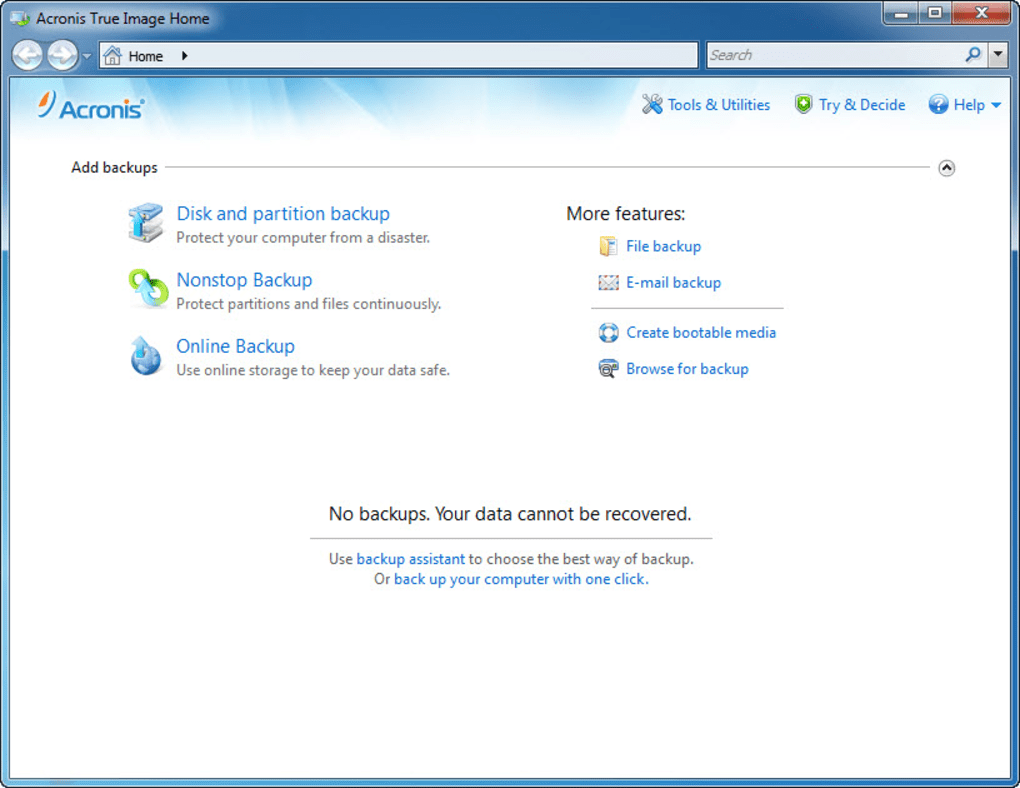
Acronis Backup and Security 2011 is a comprehensive data‑protection suite that combines powerful backup capabilities with a collection of system utilities designed to keep your Windows PC safe, clean, and recoverable. Whether you are a casual home user who worries about accidental file deletion or an IT professional who needs scheduled, incremental backups for multiple workstations, this software offers a single‑click solution to create exact copies of your operating system, applications, settings, and personal files. The program automatically detects critical system changes, allowing you to roll back to a previous state after a crash, ransomware attack, or faulty driver installation. In addition to local disk imaging, Acronis provides an integrated online backup service (2 GB free in the trial) that stores encrypted copies in the cloud, ensuring that even a hardware failure cannot erase your most valuable data. The interface is intentionally clean and wizard‑driven, which reduces the learning curve for beginners while still exposing advanced options for power users. By bundling a startup recovery manager, secure file deletion, disk cleanup, and the innovative “Try and Decide” sandbox, Acronis turns a traditional backup tool into a full‑featured security suite that proactively guards against both data loss and malicious software.
Key Features & System Utilities
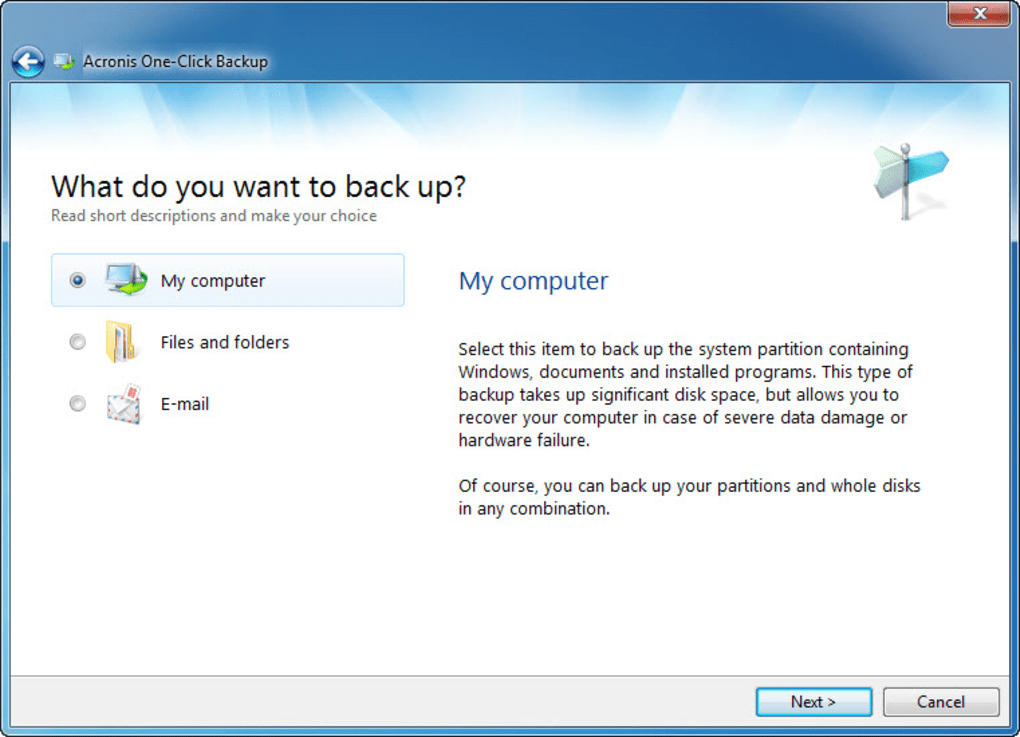
- One‑Click Full System Imaging – Capture an exact replica of your OS, programs, and files in a single operation.
- Scheduled & Incremental Backups – Automate backups on daily, weekly, or monthly intervals; incremental mode saves only changed data, reducing storage needs.
- Online Cloud Backup (2 GB trial) – Securely upload encrypted images to Acronis’ data centers for off‑site protection.
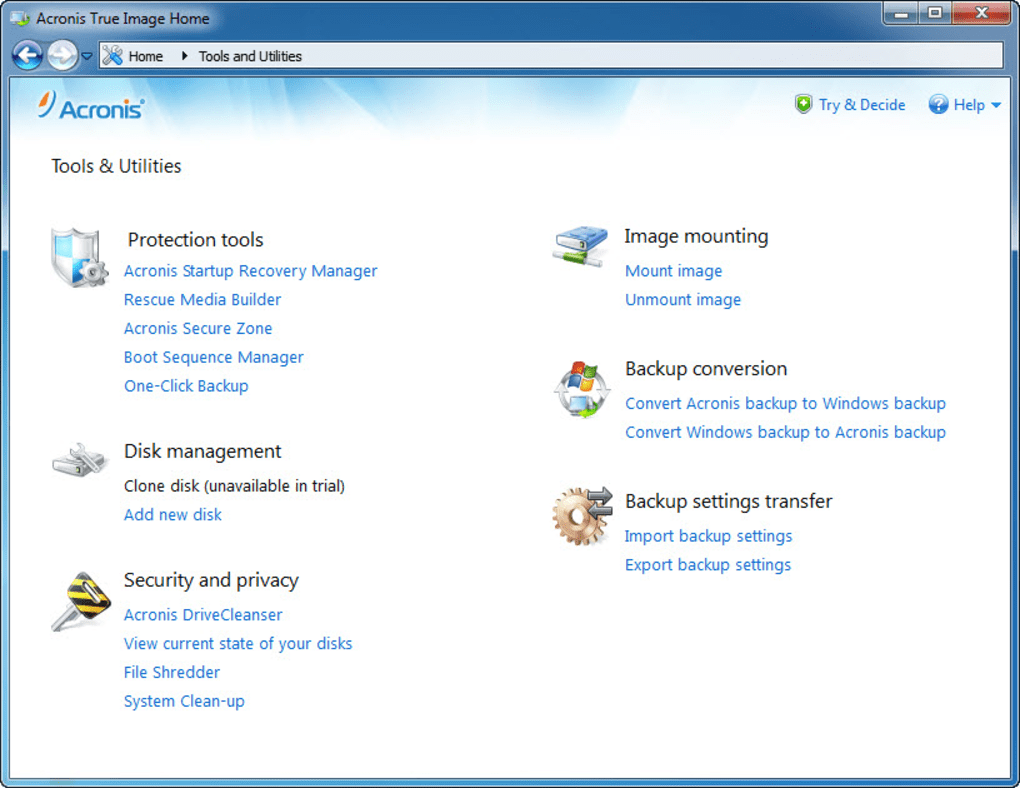
- Startup Recovery Manager – Create a bootable recovery environment that can launch even when Windows fails to start.
- Mount & Unmount Disk Images – Access backup contents as virtual drives without restoring the whole image.
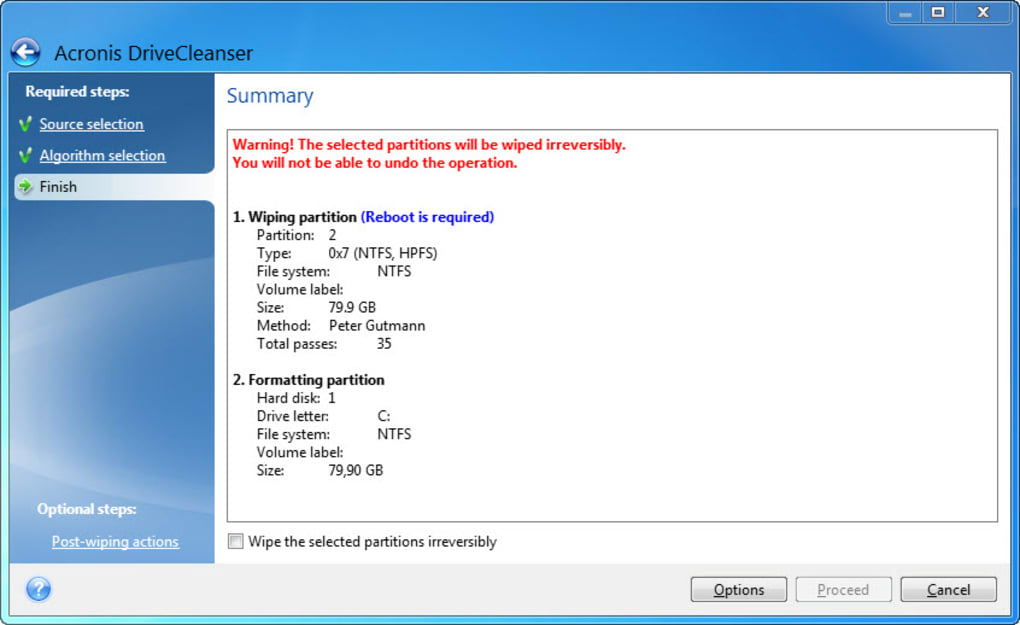
- Secure File Deletion – Overwrite files multiple times to make recovery impossible, complying with data‑privacy regulations.
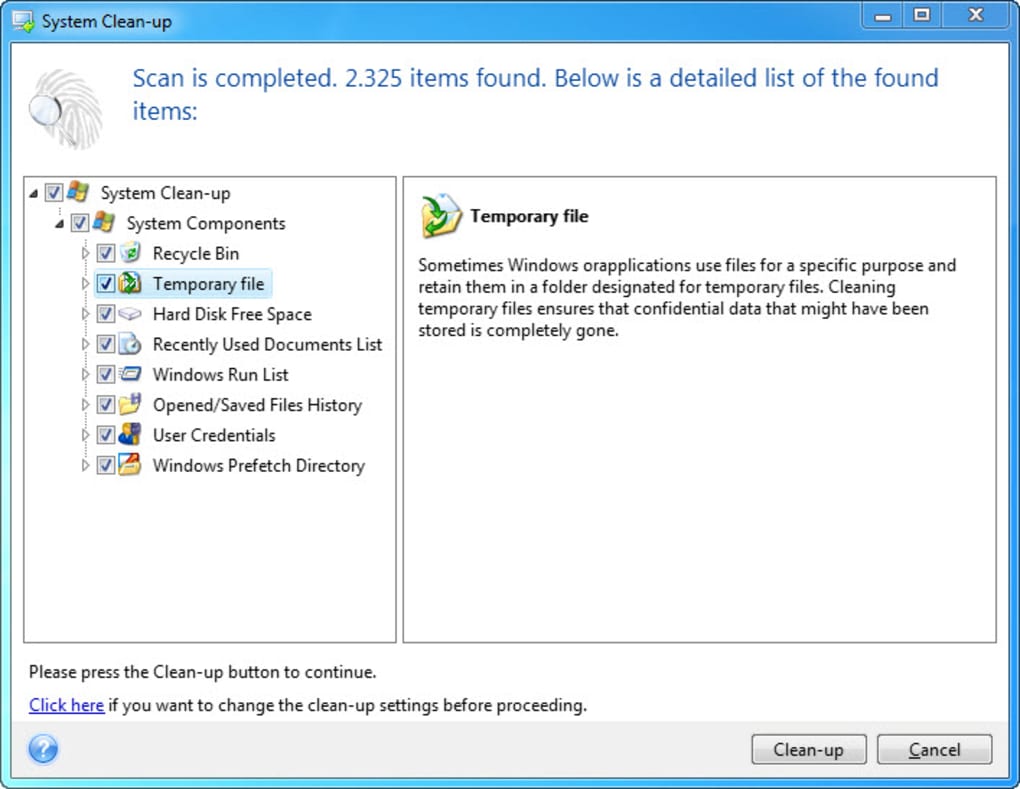
- System Cleanup Tools – Remove temporary files, browser traces, and leftover installation remnants to keep the PC running smoothly.
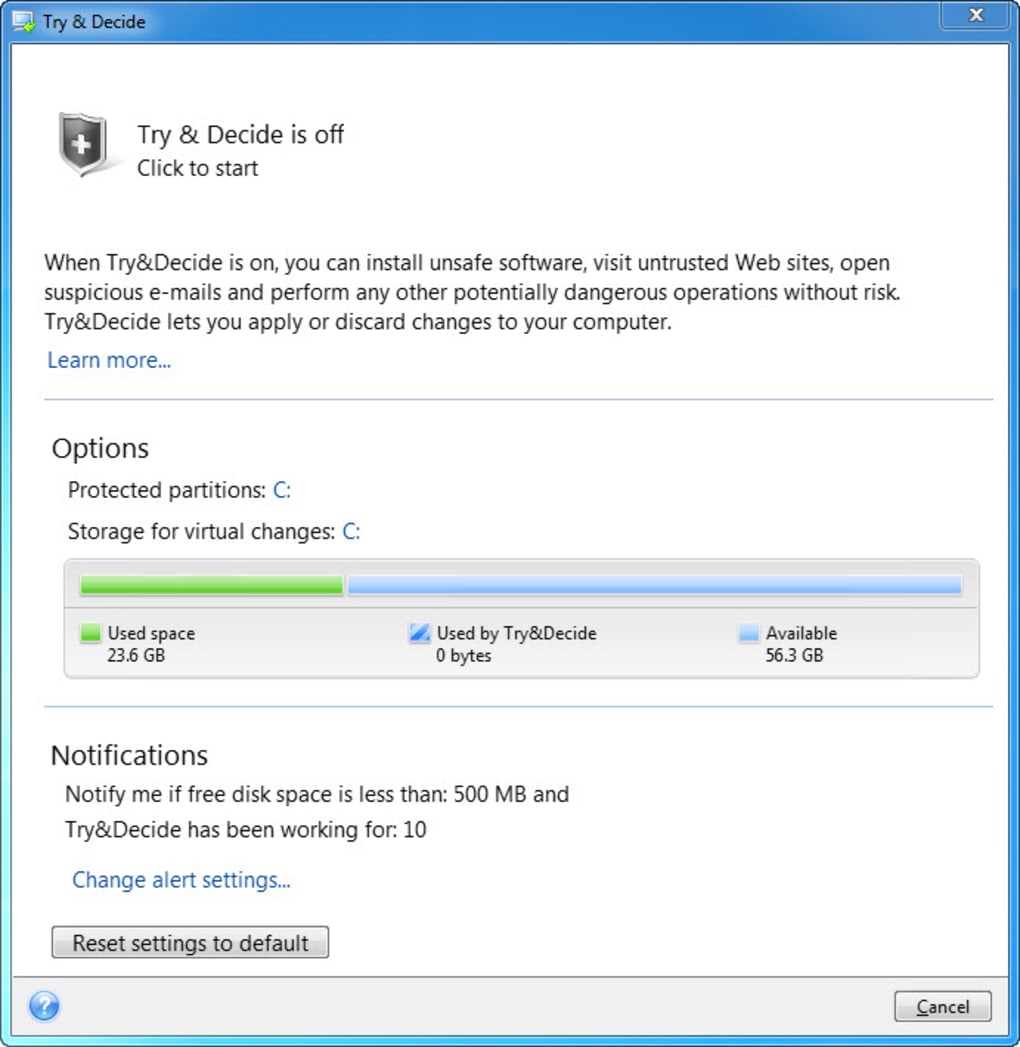
- Try and Decide Sandbox – Run suspicious applications or visit risky websites in an isolated virtual environment; discard changes with a single click.
- Encryption & Password Protection – AES‑256 encryption safeguards backup files both locally and in the cloud.
- Easy Restoration Options – Restore individual files, folders, or the entire system from any point in time.
Installation, Usage & Compatibility
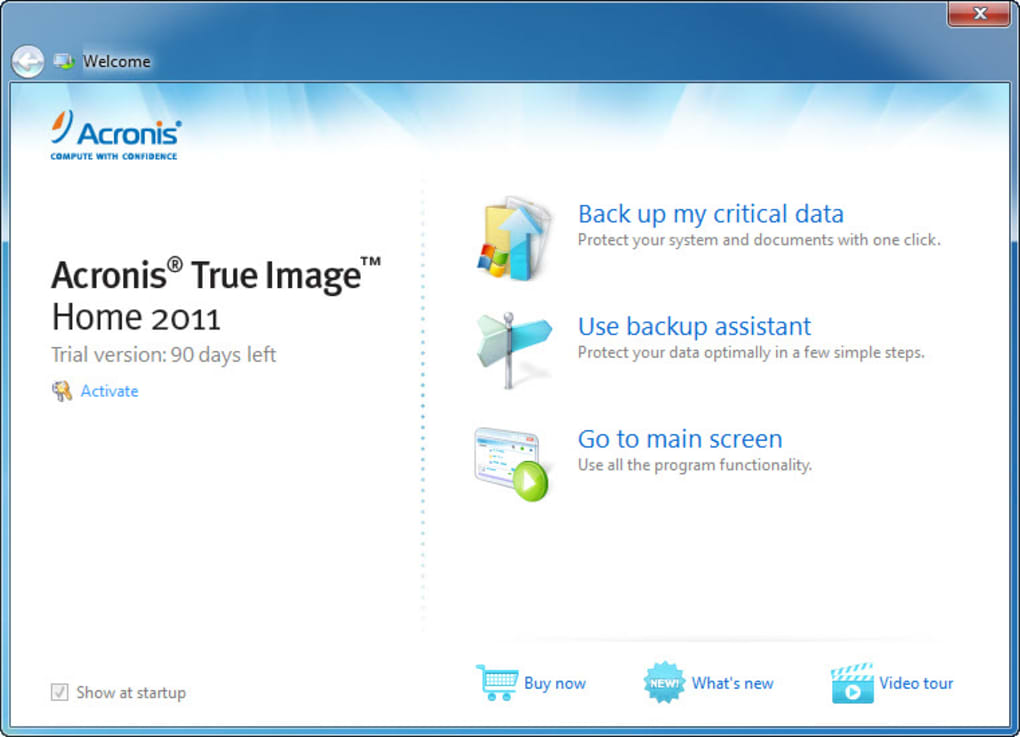
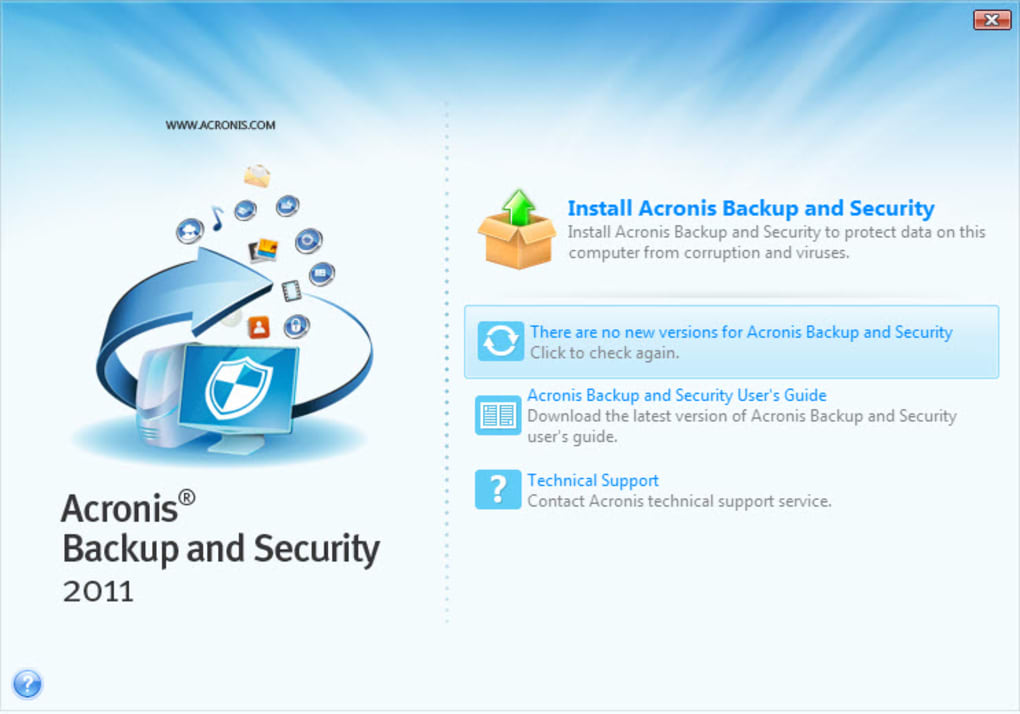
Installing Acronis Backup and Security is straightforward. Download the installer from the official Acronis website, run the .exe file, and follow the on‑screen wizard. The setup process checks for required components, such as the Microsoft .NET Framework, and automatically installs them if missing. Once installed, launch the application from the desktop shortcut; the main dashboard appears, displaying the backup module at the top.
Step‑by‑Step Backup Creation
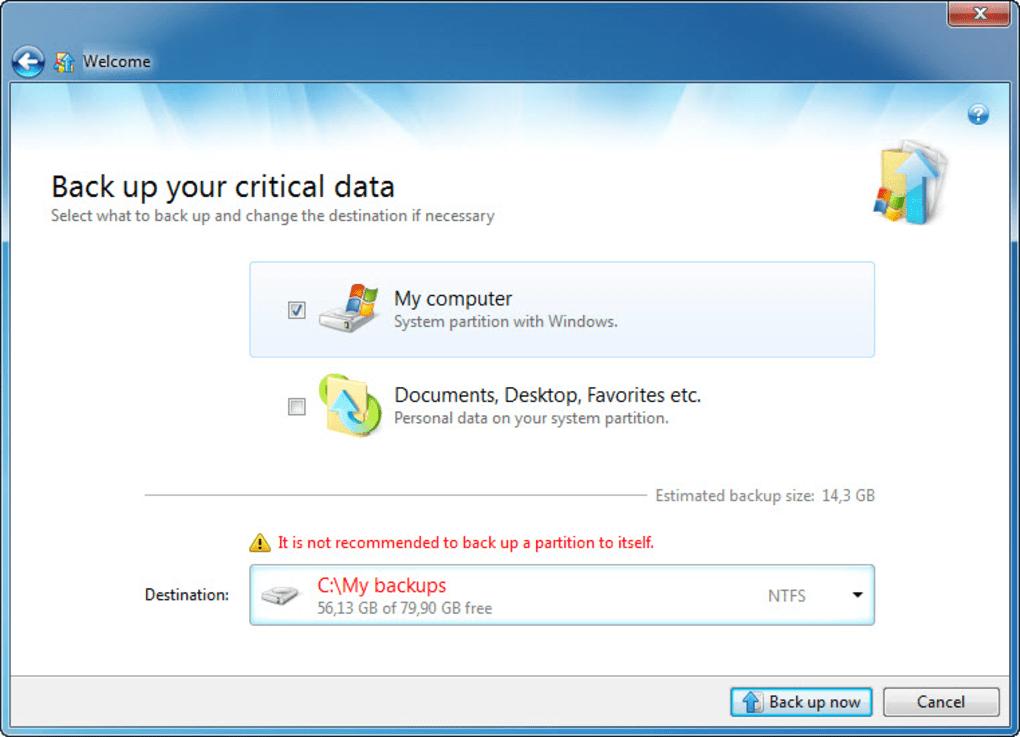
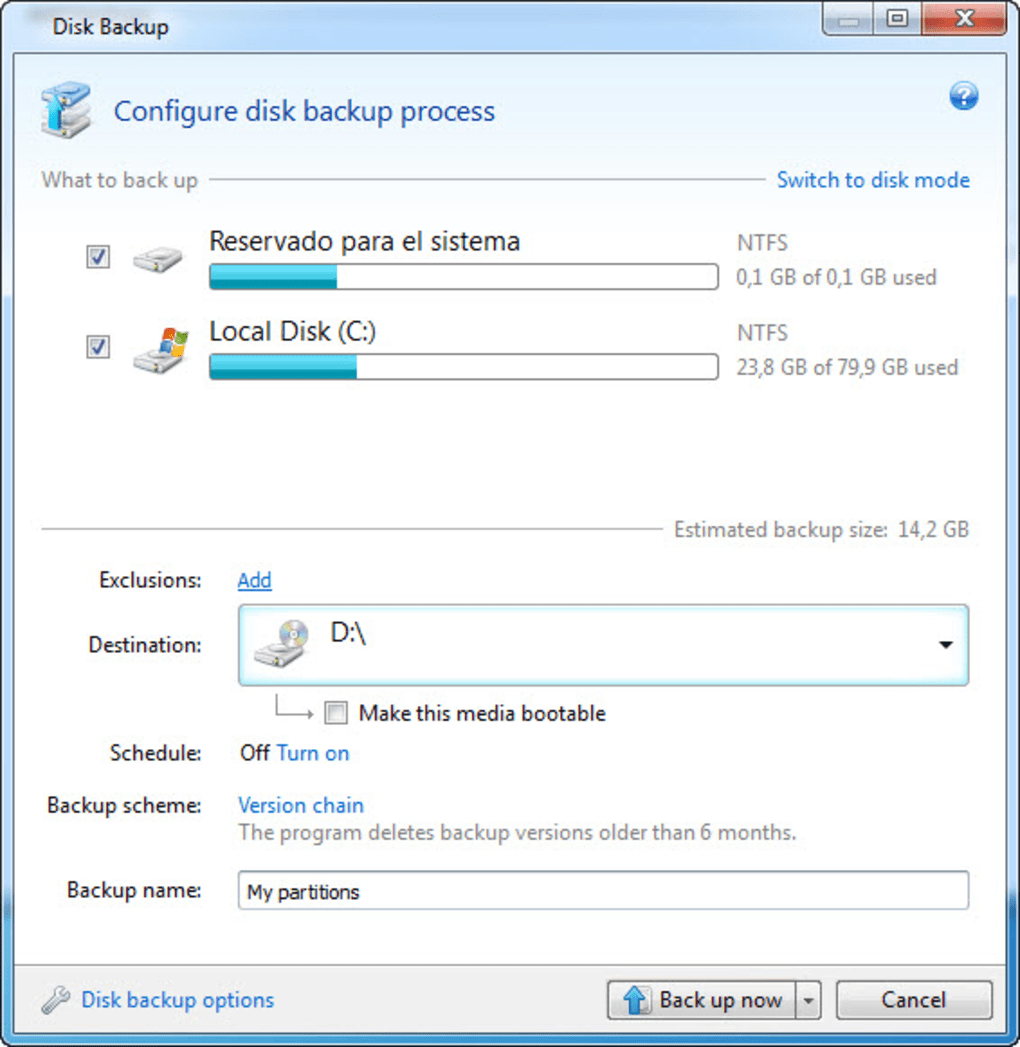
- Click “Create Backup” and select the source – you can choose the entire system, a specific partition, or individual folders.
- Pick a destination: local drive, external USB, network share, or the integrated Acronis cloud.
- Choose a backup scheme: full, incremental, or differential. For most users, incremental provides the best balance of speed and storage efficiency.
- Configure a schedule if you want automatic backups. The scheduler supports daily, weekly, or monthly cycles, and you can set a specific time to avoid working hours.
- Review the summary and click “Start Backup”. The progress bar shows real‑time status, and you can pause or cancel at any point.
The restoration process mirrors the backup workflow. Select “Restore”, pick the desired image, and choose whether to recover specific files or the whole system. Acronis also offers a “Universal Restore” feature that adapts the restored system to new hardware, minimizing driver conflicts.
Supported Operating Systems: Windows 7, Windows 8/8.1, Windows 10, and Windows 11 (both 32‑bit and 64‑bit). The software does not run natively on macOS, Linux, Android, or iOS, but you can manage cloud backups via the Acronis web portal from any device.
Pros, Cons, FAQ & Final Verdict
Pros
- Intuitive one‑click backup and recovery process.
- Comprehensive suite of system utilities beyond basic imaging.
- Incremental backups dramatically reduce storage consumption.
- Secure cloud storage option adds off‑site protection.
- Try and Decide sandbox isolates risky actions without harming the host system.
- Robust encryption and secure file deletion meet compliance standards.
Cons
- Limited to Windows; no native macOS or Linux client.
- Trial version caps cloud storage at 2 GB, which may be insufficient for larger images.
- Advanced features (e.g., Universal Restore) are only available in higher‑priced editions.
- Initial backup of a full system can be time‑consuming on slower drives.
Frequently Asked Questions
Can I back up multiple PCs with a single license?
A single license covers one physical computer. For multiple machines you need to purchase additional seats or a business‑grade subscription.
Is the cloud backup data encrypted before it leaves my computer?
Yes. Acronis uses AES‑256 encryption, and you can set a personal encryption password that never leaves your device.
How does “Try and Decide” differ from a regular virtual machine?
Try and Decide creates a lightweight sandbox that runs on top of your existing OS, requiring no separate VM installation. Changes are discarded automatically when you exit the sandbox, leaving your host untouched.
Can I restore a backup to a computer with different hardware?
Yes. The Universal Restore feature adjusts drivers and system settings to match the new hardware, making migration possible.
What is the recommended frequency for incremental backups?
For most home users, a daily incremental backup combined with a weekly full backup provides a good balance of protection and storage efficiency.
Conclusion & Call to Action
Overall, Acronis Backup and Security 2011 delivers a reliable, all‑in‑one solution that goes far beyond simple file copying. Its blend of scheduled imaging, secure cloud storage, and a toolbox of system utilities makes it an excellent choice for anyone who values data integrity and peace of mind. While the Windows‑only limitation and modest trial cloud space may deter some users, the robust feature set and intuitive design more than compensate for these minor drawbacks. If you’re ready to safeguard your PC against accidental loss, ransomware, or hardware failure, download Acronis Backup and Security today and start protecting your digital life with a single, secure application.
Guides & Tutorials for Acronis Backup and Security
How to install Acronis Backup and Security
- Click the Preview / Download button above.
- Once redirected, accept the terms and click Install.
- Wait for the Acronis Backup and Security download to finish on your device.
How to use Acronis Backup and Security
This software is primarily used for its core features described above. Open the app after installation to explore its capabilities.
User Reviews for Acronis Backup and Security 0
No reviews found





